Manage every order from one dashboard
Incoming QR orders appear in real time. Review the items, accept the order, update preparation status, and mark it complete — all from a single screen.
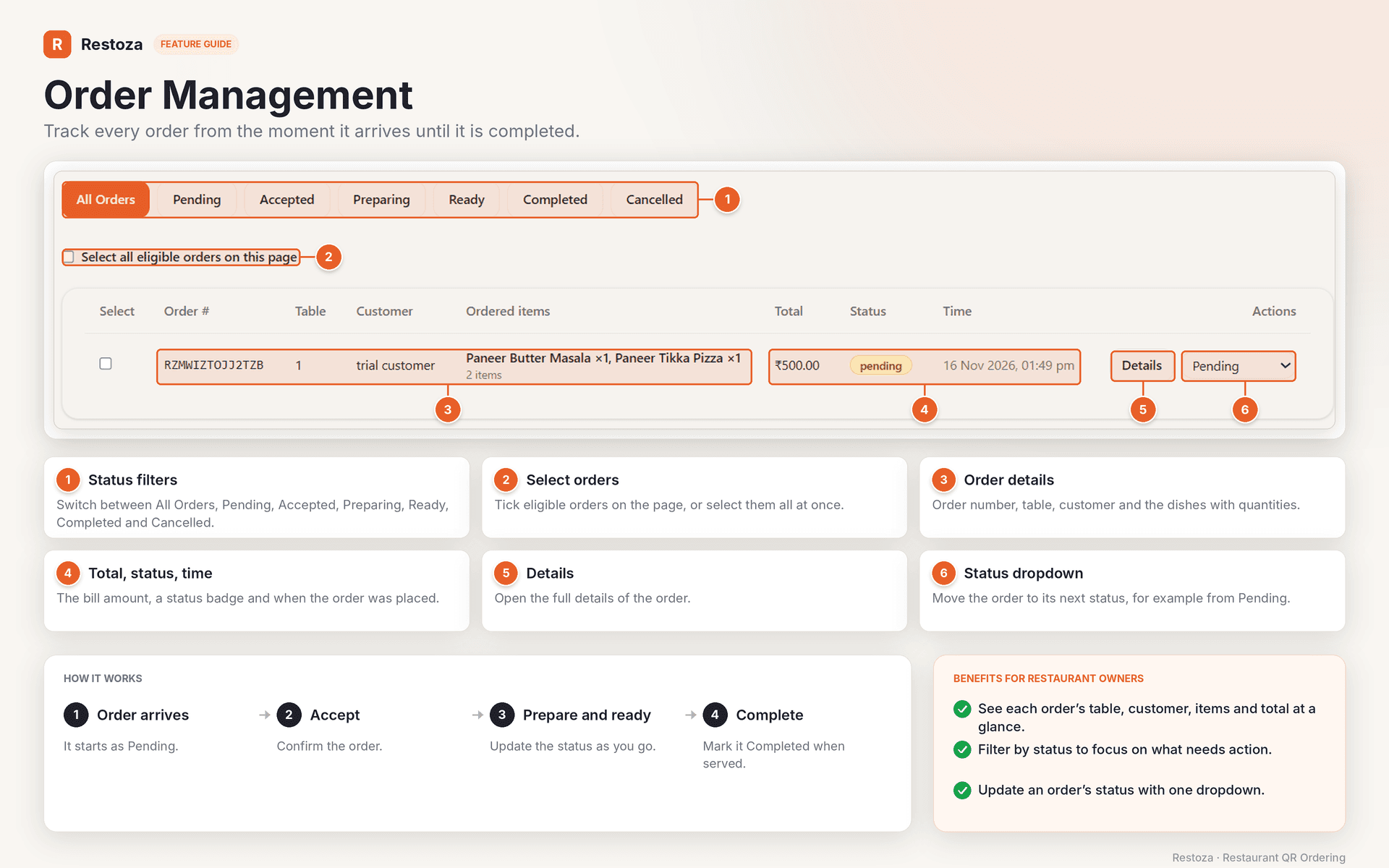
Order status flow
- Pending — order just arrived.
- Accepted — you confirmed the order.
- Preparing — kitchen is cooking.
- Ready / Completed — order is done.
What is Order Management?
Order Management is the central hub where your restaurant handles every incoming order. When a customer scans a table QR code and submits an order, it appears immediately in your dashboard. You can see what was ordered, the table number, any special notes, and the total — then work through the order from start to finish without switching tools.
Each order moves through a clear status lifecycle: Pending, Accepted, Preparing, Ready, and Completed. This keeps your team aligned on what has been received, what is being cooked, and what is ready to serve.
What problem does it solve?
Missed or delayed orders
Paper tickets or verbal orders can be overlooked during a rush. Digital orders appear instantly in the dashboard with a clear pending list, so nothing falls through the cracks.
Unclear order status
Without a shared system, it is hard to tell which orders are being cooked and which are ready. Status updates give every team member a live view of the kitchen.
How does it work?
Orders flow into the dashboard as soon as a customer submits them from their phone. Open any order to review the itemised list, quantities, customer name, table number, and preparation notes. Accept the order to confirm it, then update the status as the kitchen works. When the food is served, mark the order complete — the record stays in your dashboard for reporting and history.
Step-by-step: handling an order
Order arrives in the dashboard
When a customer submits a QR order, it appears instantly as a new pending order with the table number and items.
Review and accept the order
Open the order to see the items, quantities, notes, and total. Tap Accept to confirm you will prepare it.
Update preparation status
Mark the order as Preparing while the kitchen works, then Ready when it is ready for collection or delivery.
Complete the order
Mark the order as Completed once the customer has received their food. Payment and history are recorded.
Key benefits for restaurant owners
Real-time visibility
New orders appear the moment a customer places them — no refresh needed.
Clear order details
Every order shows items, quantities, customer notes, table number, and total.
Status tracking
Move orders from Pending to Completed so your team always knows what is next.
Related features
Pair order management with these tools: